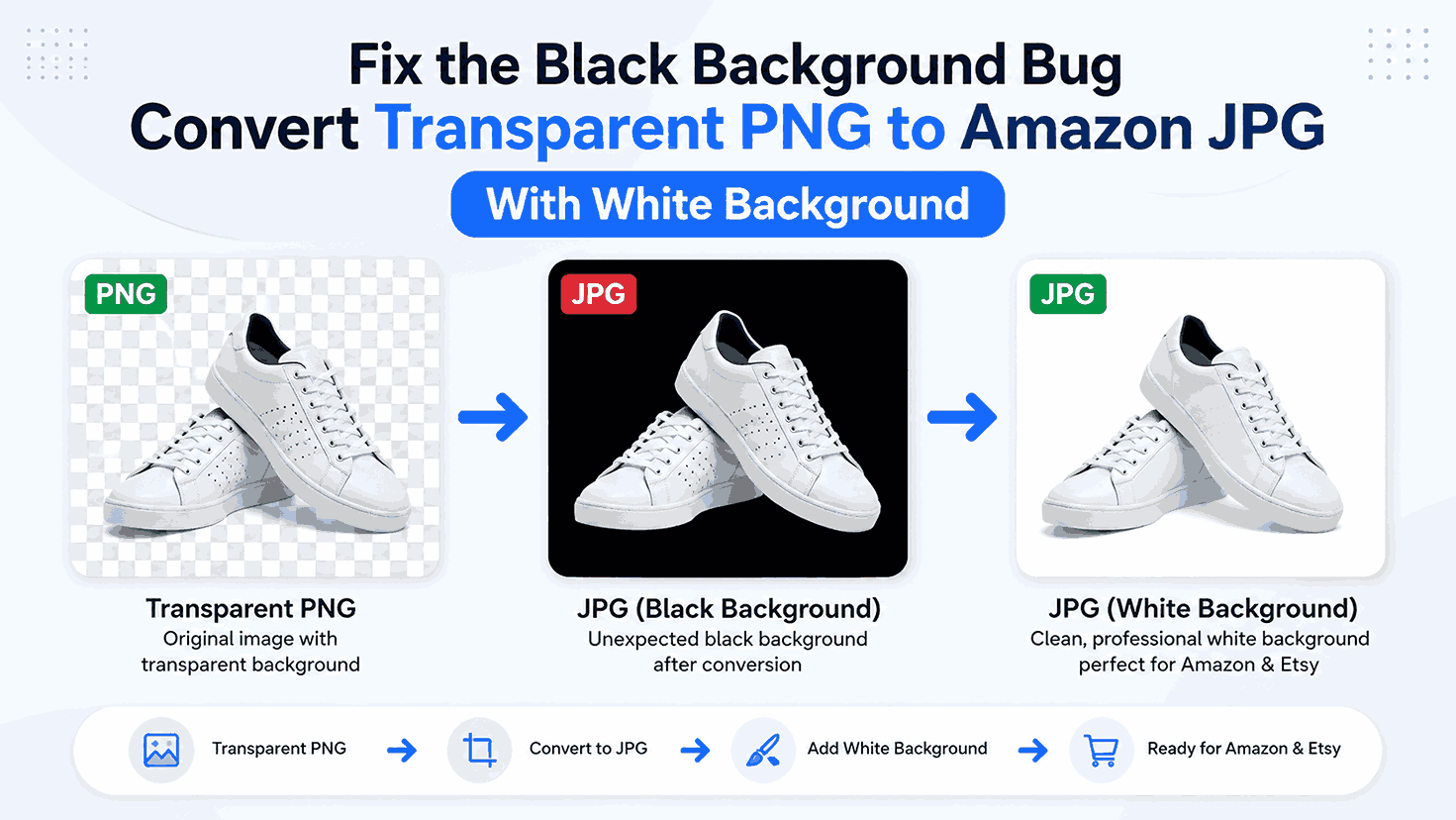
If you sell goods online, you might have run across an annoying image issue: your product appears flawless in a transparent PNG file, but the background turns dark when you convert it to JPG.
This issue is particularly prevalent when vendors must prepare product photos for online retailers like Amazon or convert transparent PNG artwork to JPG format for Etsy. In an image editor, a transparent PNG can appear appropriately, but a converted JPEG might have an unexpected black background.
Fortunately, your original photograph is typically undamaged. The issue arises because JPG does not support transparency, whereas PNG does.
How to Fix the “Black Background” Bug When Converting Transparent PNGs for Amazon Listings
When a transparent PNG is converted to JPG, every transparent pixel must be replaced with an actual color. If the conversion process does not specify a background color, some tools may render transparent areas as black.
In this guide, we'll explain why transparent PNGs turn black when converted to JPG, how to convert transparent PNG to Amazon JPG with a white background, and how to fix the Etsy PNG to JPG black background problem.
Use our free PNG to JPG converter tool.
Why Does a Transparent PNG Turn Black When Converted to JPG?
The most important thing to understand is that JPG and PNG handle transparency differently.
Transparent backgrounds are supported by PNG. This implies that an object in a PNG can have no background.
For example, a product image may contain:
- A product in the center
- Transparent pixels around the product
- No actual background color
This image may appear to have a checkerboard pattern or a white background when viewed in software that supports transparency.
JPG, however, does not support transparency.
Therefore, when you convert a transparent PNG to JPG, the transparent pixels must be converted into a solid color.
If the converter does not properly handle the transparency layer, those pixels can become black.
The basic problem is:
Transparent PNG → JPG = Transparency must be replaced by a color
If that color is black, your final image will have a black background.
This is why simply changing the file extension from .png to .jpg does not solve the problem.
PNG vs JPG: Why This Happens
Understanding the difference between the two formats makes the solution much easier.
| Feature | PNG | JPG/JPEG |
|---|---|---|
| Transparency | Yes | No |
| Transparent Background | Supported | Not supported |
| Compression | Lossless | Lossy |
| Best For | Graphics, logos, transparent images | Photos and general images |
| File Size | Usually larger | Usually smaller |
| Background Required | No | Yes |
| Common Web Use | Graphics and transparency | Photos and images |
A PNG can contain transparency because it stores additional information about how transparent individual pixels are.
JPG does not have this capability.
So when a transparent PNG is converted into JPG, the transparent areas have to become visible pixels.
White is commonly preferred for product listing images, but the correct background depends on the marketplace and the purpose of the image.
How to Convert Transparent PNG to Amazon JPG With a White Background
If you need to convert a transparent PNG to an Amazon JPG with a white background, the correct workflow is
Transparent PNG → White Background → JPG
The critical step is adding the white background before the final JPEG is created.
Step 1: Select Your Transparent PNG
Start with the original PNG file.
For example:
product-transparent.png
Make sure the image actually contains transparent areas.
If you open it in an image editor, transparency is often displayed as a checkerboard pattern.
Step 2: Add a Solid White Background
Place a solid white layer behind the transparent PNG.
Your layers should look approximately like this:
Top layer: Product PNG
Bottom layer: White background
The transparent areas of the PNG will now display the white color underneath.
At this stage, inspect the image carefully.
Check:
- Product edges
- Shadows
- Fine details
- Transparent areas
- Text
- Logos
- Corners
This is important because adding a background can sometimes reveal unwanted edges around the product.
Step 3: Export the Image as JPG
Once the white background has been added, export the image as JPG or JPEG.
The transparency no longer needs to be preserved because the transparent areas have already been replaced with white pixels.
The result should look like:
Original: Product + transparent background
Final JPG: Product + white background
Etsy PNG to JPG Black Background Fix
Etsy sellers can encounter the same problem when working with transparent PNG images.
For example, you may have:
- Product artwork
- Digital designs
- Logos
- Illustrations
- Printable graphics
- Transparent product images
The original PNG may look perfect, but after converting it to JPG, the transparent area may become black.
The solution is the same:
Etsy PNG to JPG black background fix
- Open the transparent PNG.
- Add the required background color.
- Place the PNG above that background.
- Flatten the image.
- Export it as JPG.
- Check the final JPG before uploading it.
If you specifically need a white background, make sure the background layer is pure white before exporting.
Why an Online PNG to JPG Converter Can Be Useful
If you frequently work with product images, manually opening an image editor for every conversion can become time-consuming.
An online image converter can make the process easier when you simply need to change an image format.
With ImageVert, you can use supported image conversion tools to convert images between different formats.
For a transparent PNG, the important thing is to ensure that the conversion process handles the transparent background correctly.
If your goal is a white-background JPG, the final image should be checked before uploading it to Amazon, Etsy, or another marketplace.
Frequently Asked Questions
Why does my PNG turn black when converted to JPG?
PNG supports transparency while JPG does not. During conversion, transparent pixels must be replaced with a solid color. If the converter uses black as the background, the transparent areas become black.
How do I convert a transparent PNG to JPG with a white background?
Add a solid white background behind the transparent PNG and then export or convert the flattened image to JPG.
Can JPG have a transparent background?
No. JPG/JPEG does not support transparent backgrounds.
Is PNG better than JPG for transparent images?
Yes. PNG is designed to support transparency, making it a common choice for transparent graphics and images.
Why does my Etsy PNG become black after converting to JPG?
The likely reason is that the transparent portion of the PNG is being flattened to black during JPEG conversion. Add the desired background color before exporting the JPG.
How do I fix a black background after PNG-to-JPG conversion?
The best solution is to return to the original PNG, place it over a white or other required background, and export it again as JPG.
Should I delete the original transparent PNG?
No. Keep the original PNG so you can create additional versions later.
Conclusion
The black background problem when converting transparent PNGs to JPG is usually caused by one simple technical limitation: JPG does not support transparency.
When a transparent PNG is converted to JPEG, the transparent pixels have to become actual pixels with a specific color. If the conversion process doesn't specify a suitable background, those areas may appear black.
For product sellers, the practical solution is straightforward:
Transparent PNG → Add white background → Flatten → Export as JPG → Check the final image
If you are searching for a convert transparent PNG to Amazon JPG white background solution, remember that the important step is not merely changing the file format. The transparent background must be properly replaced with the required background color.